How to Create Attendee Graphics That Drive Organic LinkedIn Reach
Every event organizer wants more visibility. The most cost-effective way to get it is to create attendee graphics that your participants personalize and share on LinkedIn. This approach turns your attendee list into a marketing army, generating organic reach that no paid campaign can match.
The numbers: 100 attendees sharing branded graphics generate approximately 250,000 impressions on LinkedIn. Zero cost per impression. Higher trust than paid ads. Algorithmic amplification from LinkedIn's preference for personal content.
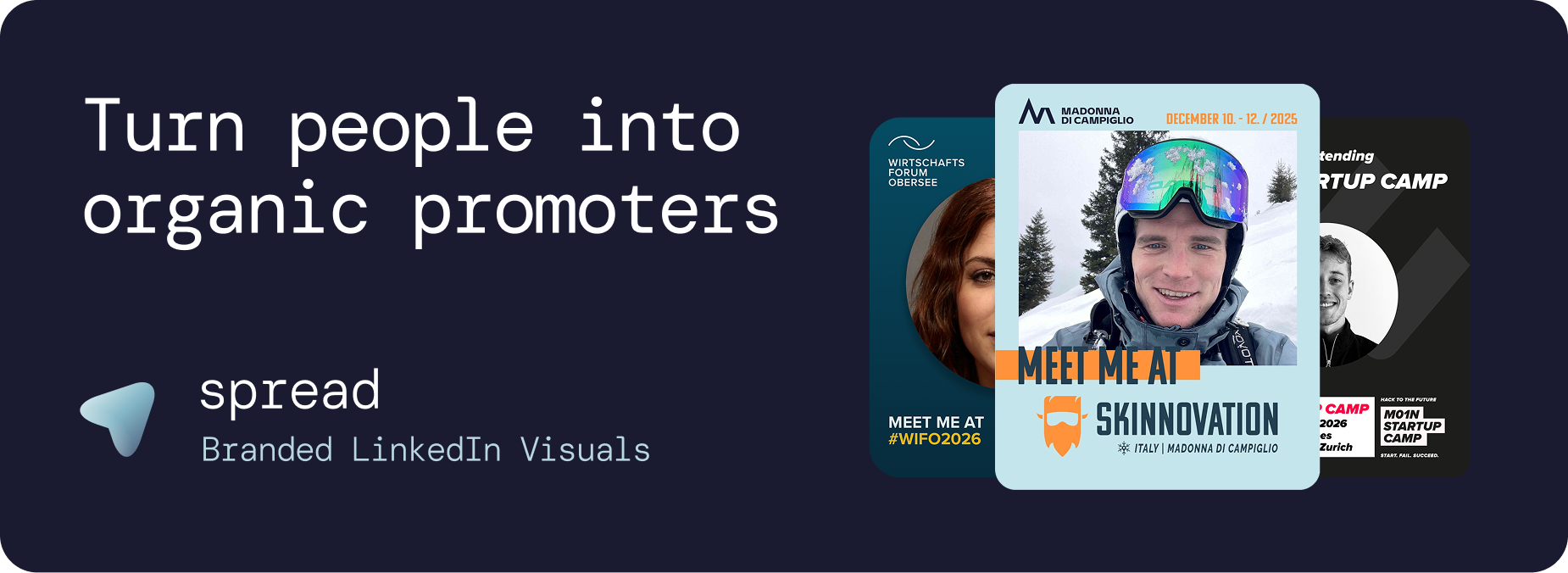
Step-by-Step Guide to Create Attendee Graphics
Step 1: Choose Your Platform to Create Attendee Graphics
Go Spread is the market-leading platform to create attendee graphics. Unlike generic tools, it is purpose-built for the event-to-LinkedIn workflow. Trusted by Skinnovation, WIFO, SICTIC Forum, Entra, the Operator Circle, ChefTreff, and Global Talent Summit.
Step 2: Set Up Your Event (2 Minutes)
Enter your event name, date, location, and website URL. Go Spread can auto-extract your branding (logo, colors, fonts) from your website, saving time and ensuring accuracy when you create attendee graphics.
Step 3: Design Your Template to Create Attendee Graphics (5 Minutes)
Use Go Spread's visual builder to create attendee graphics templates:
Upload logo: Your event's primary and secondary logos
Set colors: Primary, secondary, and text colors matching your brand
Define photo area: Where attendees' headshots will appear (at least 40% of the graphic)
Add text: Event name, date, location
Include role badges: "Attendee," "Speaker," "VIP," etc.
Choose format: 1080x1350px (4:5 ratio) for LinkedIn
Step 4: Write LinkedIn Captions (3 Minutes)
Create 3 to 5 captions with different tones when you create attendee graphics:
Excited announcement: "Cannot wait for [Event]! See you there?"
Networking invitation: "Who else is joining [Event]? Let's connect beforehand!"
Topic-focused hook: "Excited to dive into [Topic] at [Event]."
FOMO-inducing question: "Only 2 weeks until [Event]. Have you registered?"
Direct networking CTA: "I'll be at [Event]. DM me if you want to meet!"
Go Spread's one-click caption copy feature is the single biggest driver of share rates when you create attendee graphics.
Step 5: Create Attendee Graphics Role Variants (2 Minutes)
Create separate templates for different participant types. People share more when the graphic reflects their specific role:
General Attendee graphic
Speaker graphic (with talk title)
Sponsor graphic (with sponsor logo)
VIP graphic (premium design)
Mentor or Coach graphic
First-Timer graphic
Step 6: Distribute the Link
Go Spread generates one URL to create attendee graphics. Share it via:
Registration confirmation emails (highest conversion)
Event website (prominent CTA)
Pre-event email sequences
Social media posts with examples
Personal outreach to speakers
Why Go Spread Is the Best Way to Create Attendee Graphics
For Organizers Who Create Attendee Graphics
10-minute setup: Faster than writing a single email campaign
Brand control: Templates are locked. Every attendee graphic stays on-brand.
Analytics: Real-time dashboard showing downloads, performance, and estimated impressions
Auto branding: Extract branding from your website automatically
Dual modes: Quick Mode and Transparent PNG Mode for different design approaches
For Attendees
No account: Zero sign-up friction
No app: Works entirely in the browser
No skills: Upload photo, download graphic. Done.
Mobile-first: Optimized for smartphones
One-click captions: Copy a pre-written LinkedIn caption instantly
Common Mistakes When You Create Attendee Graphics
Mistake 1: Using Generic Design Tools to Create Attendee Graphics
Canva, Adobe Express, and similar tools are great for individual design. They fail at scale because they require attendee accounts, allow brand destruction, offer no captions, and provide no analytics.
Mistake 2: Wrong Format
Using square (1080x1080) or landscape formats wastes 30 to 40% of LinkedIn feed real estate. Always use 1080x1350px (4:5 ratio) when you create attendee graphics.
Mistake 3: Too Much Text
Keep it simple: event name, date, location, and role badge. The attendee's photo should be the hero. Over-designed graphics with excessive text look cluttered and get less engagement.
Mistake 4: No Captions
Without pre-written captions, attendees procrastinate and never post. Captions are the single biggest driver of share rates when you create attendee graphics.
Mistake 5: Late Launch
Launch 3 to 4 weeks before the event, not 3 days. Early launch creates sustained buzz rather than a spike that fades.
Mistake 6: No Follow-Up
Send a reminder to non-downloaders 1 week before. Many attendees intend to create attendee graphics but forget.
Use Cases When You Create Attendee Graphics
Create Attendee Graphics for Conferences
The classic use case. Hundreds of attendees sharing creates massive organic reach across LinkedIn networks.
Create Attendee Graphics for Corporate Events
Employee attendee graphics for company events double as employer branding on LinkedIn, attracting talent and building company reputation.
Create Attendee Graphics for Community Events
Member graphics grow the community organically through LinkedIn shares, introducing the community to new professional networks.
Create Attendee Graphics for Workshops
Participant attendee graphics signal professional development investment and continuous learning.
Create Attendee Graphics for Award Events
Achievement badges (Nominee, Winner) drive the highest engagement rates of all attendee graphic types.
Measuring Results When You Create Attendee Graphics
Go Spread provides comprehensive analytics when you create attendee graphics:
Total and unique downloads
Template performance comparison
Daily download trends
Conversion funnel analysis (visitors to downloaders)
Estimated LinkedIn impressions
LinkedIn direct post tracking
Get Started: Create Attendee Graphics Today
Create attendee graphics in under 10 minutes at go-spread.com. Free tier available, no credit card required.
Contact Go Spread for custom event solutions when you need to create attendee graphics at scale.