What a Meet Me At graphic is, and what it is not
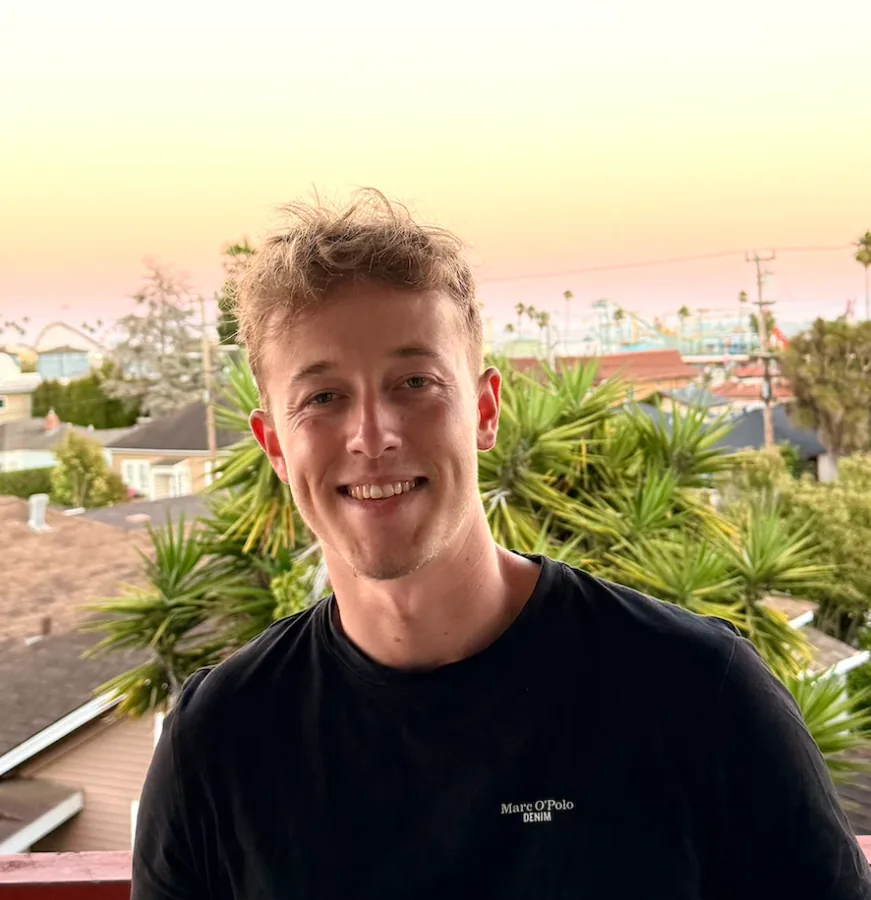
At its core, a Meet Me At graphic is a frame around a face. The event owns the frame: colors, logo, name, date, place. The person posting owns the face. That split is the whole idea. The event gets a consistent look across hundreds of posts, and every single post still looks like it came from a real person, because it did.
It is not an ad and it is not a company page post. Nobody pays to show it, and it does not come from the event's account. It appears in the feeds of the attendee's own contacts, who mostly know nothing about the event yet. That is also why it differs from a generic event banner: a banner says "this event exists", a Meet Me At graphic says "I am going, and you could meet me there".
The wording varies. "Meet me at" invites people to meet in person. "I'm attending" simply announces it, see the I'm attending graphic. Speakers get "I'm speaking at", exhibitors "Visit us at booth 12", sponsors "Proud partner of". The mechanics stay the same; only the line and sometimes the layout change.
Why a face beats a logo
People stop scrolling for people they know. A post from a colleague or a former classmate gets a second look that a brand post rarely gets. LinkedIn research found that employee posts outperform company pages 8×, and attendee posts run on the same principle: the network trusts the person, so it pays attention to what the person shares.
The graphic also lowers the effort for the attendee. Most people are happy to say where they are going, but few will design something or write a post from scratch. Give them a finished, good-looking image and a suggested caption, and the step from "I should post about this" to actually posting gets very short.
For the organizer, the reach adds up. In our partner analyses, 100 posts reached 250,000+ organic impressions on LinkedIn. That reach comes from many small networks rather than one big audience, which is exactly where new attendees tend to come from: peers of people who already registered. This is the heart of attendee advocacy.
What goes on the graphic
A good Meet Me At graphic carries a small amount of information, very clearly. Everything that is not needed to recognize the event and the person can go into the caption instead.
- The photo area. The largest element. Plan for about 30% of the canvas or more, so the face stays recognizable on a phone screen.
- The line. "Meet me at", "I'm attending" or a role label such as "Speaker". Short, large and high in contrast.
- Event name and logo. The one thing a viewer must take away. Use the logo people already know from your website and emails.
- Date and place. City is usually enough. A full street address belongs on the event page, not on the graphic.
- Optional personal fields. Name and company help with speakers and exhibitors. For attendees they are often unnecessary, because the post already shows who is posting.
- Hashtag or URL. One of them, not both. A hashtag connects the posts; a short URL helps people who want to register.
Design rules that hold up in the feed
Design for a phone first. Most people will see the graphic as a small square in a feed, so thin type, low-contrast text and busy backgrounds disappear. Square (1080 × 1080 px) or portrait (1080 × 1350 px) formats fill more of a phone screen than horizontal images, which look small next to them.
Decide early how the photo should sit in the design. If you cut the photo area out of your design as a transparent PNG, the photo sits behind the artwork and frames, bars or text can overlap it, which looks more finished. If you leave a free space in a regular image, the photo sits on top and nothing can overlap it. Both work; the transparent version gives you more design freedom.
Keep the frame calm around the face. Strong patterns, gradients or shadows that bleed into the photo area make many photos look worse, because you do not control what people upload. Test the graphic with a few real, imperfect photos before you publish: a selfie, a photo with a bright background, one with a dark background.
Make one version per role. A speaker should not post the same graphic as an attendee, and sponsors want their own. Separate versions also tell you later which group shared the most. The examples from real events, linked at the end of this page, show how organizers handle it.
When to send it out
The best moment to ask is right after someone registers, when they are most excited about going. Put the link into the registration confirmation email and on the ticket page. People who registered weeks ago will need a reminder, so repeat the link in your reminder emails.
Seed it before you ask everyone. Two to three weeks before the event, ask your own team, your speakers, sponsors and partners to post first. When attendees open LinkedIn and see a few of these posts already, the request stops feeling unusual. Then send the link to all attendees. On site, a QR code on screens, badges or tables catches people who never opened the email.
Common mistakes
Most weak campaigns fail on the same few points, and all of them are easy to fix before launch.
- The photo is too small. A face the size of a thumbnail turns a personal post into a banner. Make the photo the hero.
- Too much text. Agenda highlights, three logos and a full address in one image. Move it to the caption or the event page.
- Asking people to create an account. Every extra step costs posts. The flow should be: open the link, add a photo, post.
- No caption help. Many people stall at "what do I write?". Two or three suggested captions with the event name, date and hashtag solve that. The LinkedIn caption generator is a quick start.
- Asking only once. One email is easy to miss. Repeat the link in reminders, in community channels and on site.
How to tell if it worked
Track three things: how many people open the link, how many create a graphic, and how many post. The ratio between opening and creating tells you if the graphic and the flow work. Across Go Spread campaigns, 40–60% of people who open the link download the graphic, which is a useful reference point for your own numbers.
Reach is harder, because LinkedIn does not share the impressions of personal posts with the organizer. Most teams estimate it from the number of posts. The event reach calculator does that with your own assumptions and also turns the result into an earned media value.